

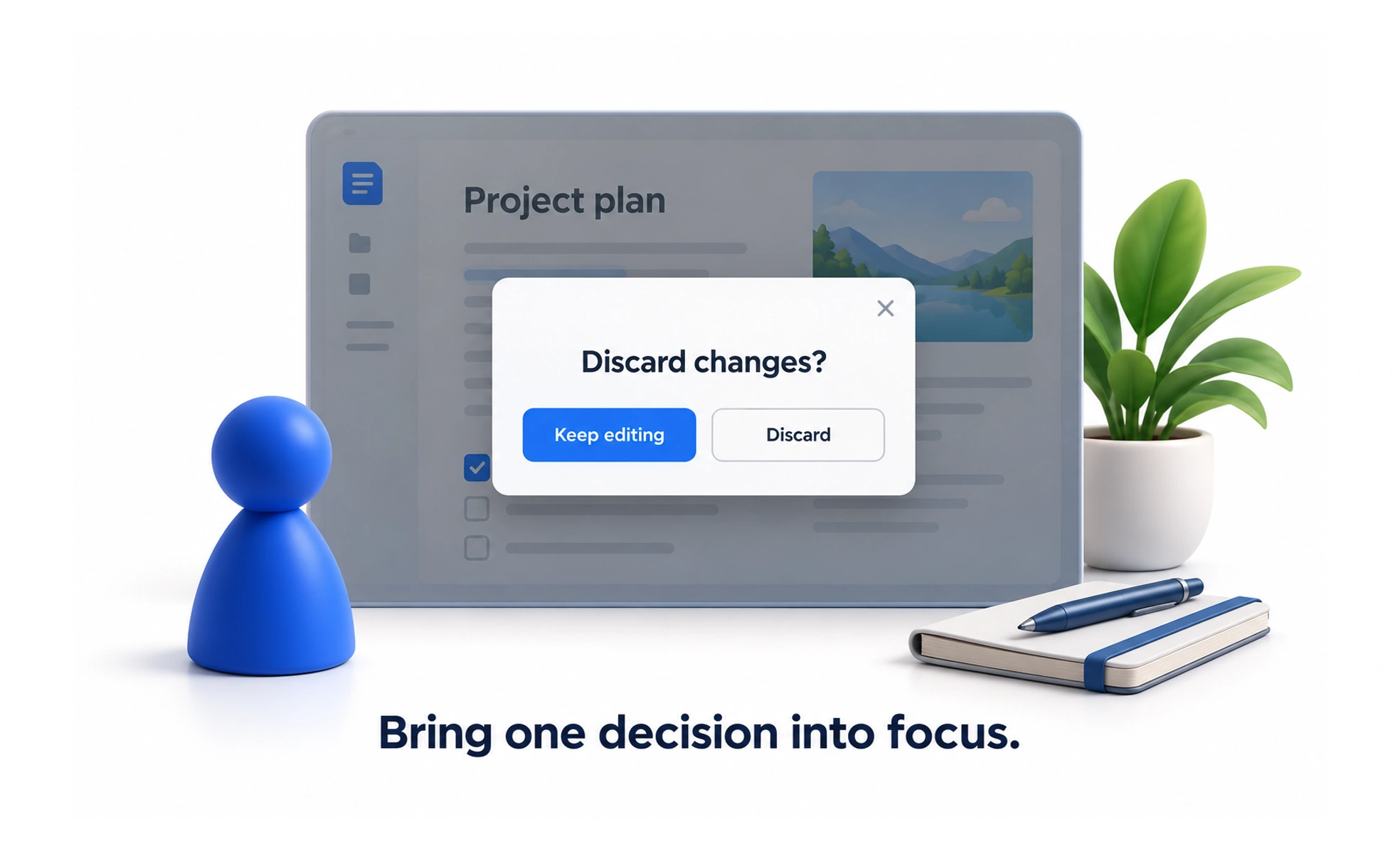
A dialog is a window that appears above the current page to request input, show information or confirm an action. It interrupts the current task, so use it when the decision belongs in the foreground and keep its purpose and exit route clear.
A dialog is like a brief interruption from a colleague: it should explain why it needs attention and let the conversation return to where it stopped.
Use an interruption deliberately
A dialog can focus attention on an important choice, such as confirming a destructive change or entering a small amount of related information. Do not use it for content people could read in the page flow. Frequent or oversized dialogs interrupt orientation and make it harder to compare information behind them.
Give the dialog a clear structure
Use a concise title, explain the decision and label actions by their outcome. Put the safe or expected action in a predictable place and visually distinguish a destructive choice. Keep the content focused; a long form may need a dedicated page or drawer instead.
Manage focus and dismissal
When opened, move focus into the dialog and keep keyboard navigation within it if the background is unavailable. Return focus to the triggering control when it closes. Provide an explicit close or cancel action. Whether clicking outside or pressing Escape dismisses it should reflect the risk of losing work.
Example: deleting a saved item
A dialog says “Remove this lesson from Saved?” and offers “Keep lesson” and “Remove.” If the action is reversible and does not delete the lesson itself, the title should say exactly that. After confirmation, close the dialog, announce the result and leave focus somewhere useful in the updated list.
Frequently asked questions
Key takeaways
- Interrupt only when a foreground decision is useful.
- Explain the choice and label actions by outcome.
- Manage focus on open, inside and after close.
- Protect unsaved work from accidental dismissal.