

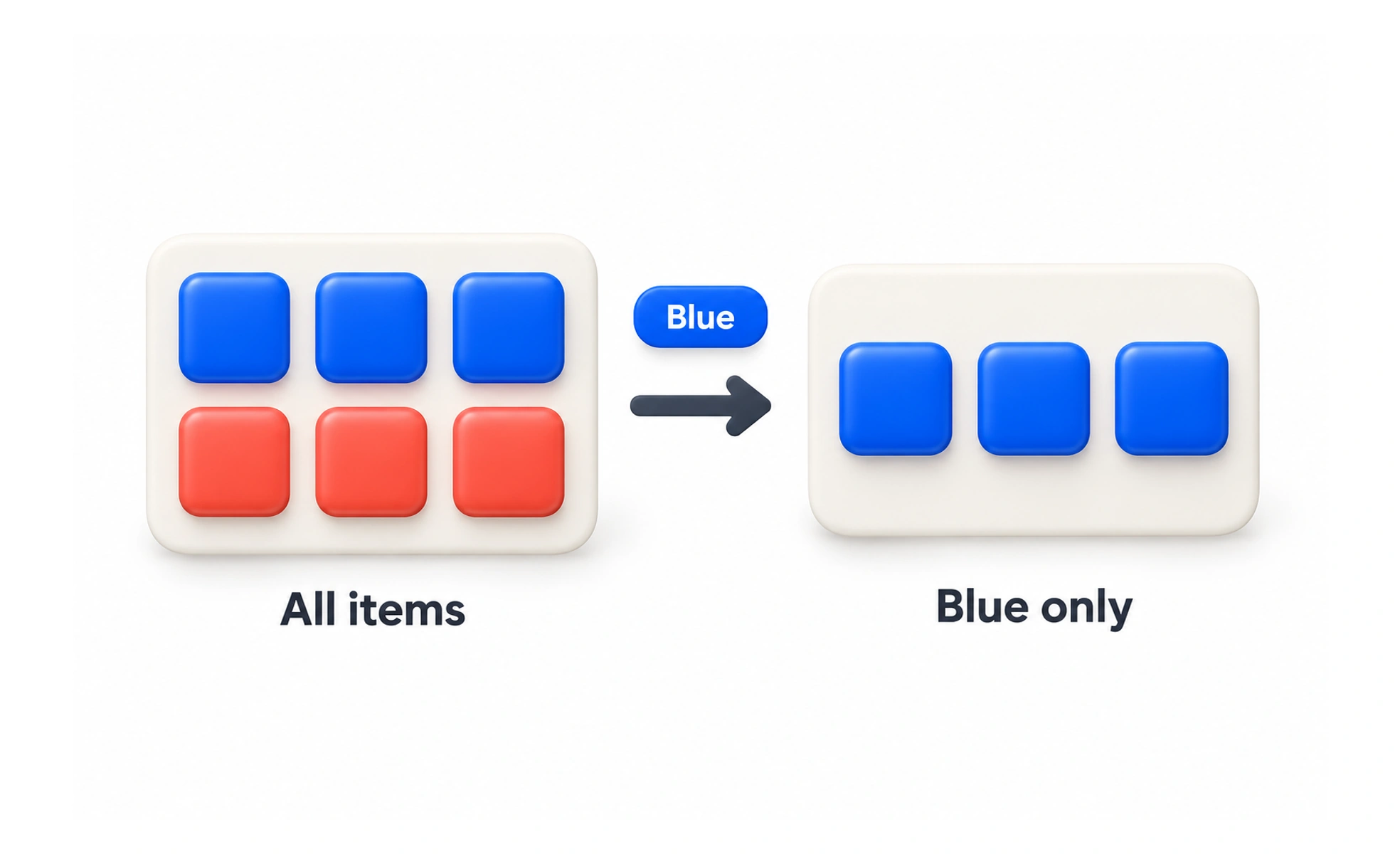
A filter narrows a set of results by applying conditions, such as topic, date, price, or status. It helps people focus on items that meet their current needs without changing or deleting the underlying collection.
A filter is like a sieve: it changes which items are shown, not which items exist.
Use criteria people understand
Name filters in the language of the content, such as “Difficulty” or “Last updated.” Avoid exposing internal database labels that do not help someone predict the result.
Make active filters visible
Show which conditions are applied and make them easy to remove. If several conditions combine, make the relationship clear; “UX and beginner” can mean something different from “UX or beginner.”
Keep results and controls in sync
When a filter changes, update the results and any visible count. On slow requests, show that results are refreshing and avoid presenting an old count as if it belonged to the new selection.
Provide recovery
Offer a clear way to clear one condition or reset all filters. Preserve search terms when appropriate, and give a useful empty state when no items match rather than implying the content is gone. If someone filters a course list to “Beginner” and “Free,” show both active criteria near the results and provide a direct way to remove either one. Update the result count with the list. On narrow screens, keep the filter summary visible when the filter panel closes.
Frequently asked questions
Key takeaways
- Filter by criteria learners recognize.
- Show active conditions and how they combine.
- Update result counts with the results.
- Make it easy to remove or reset filters.