

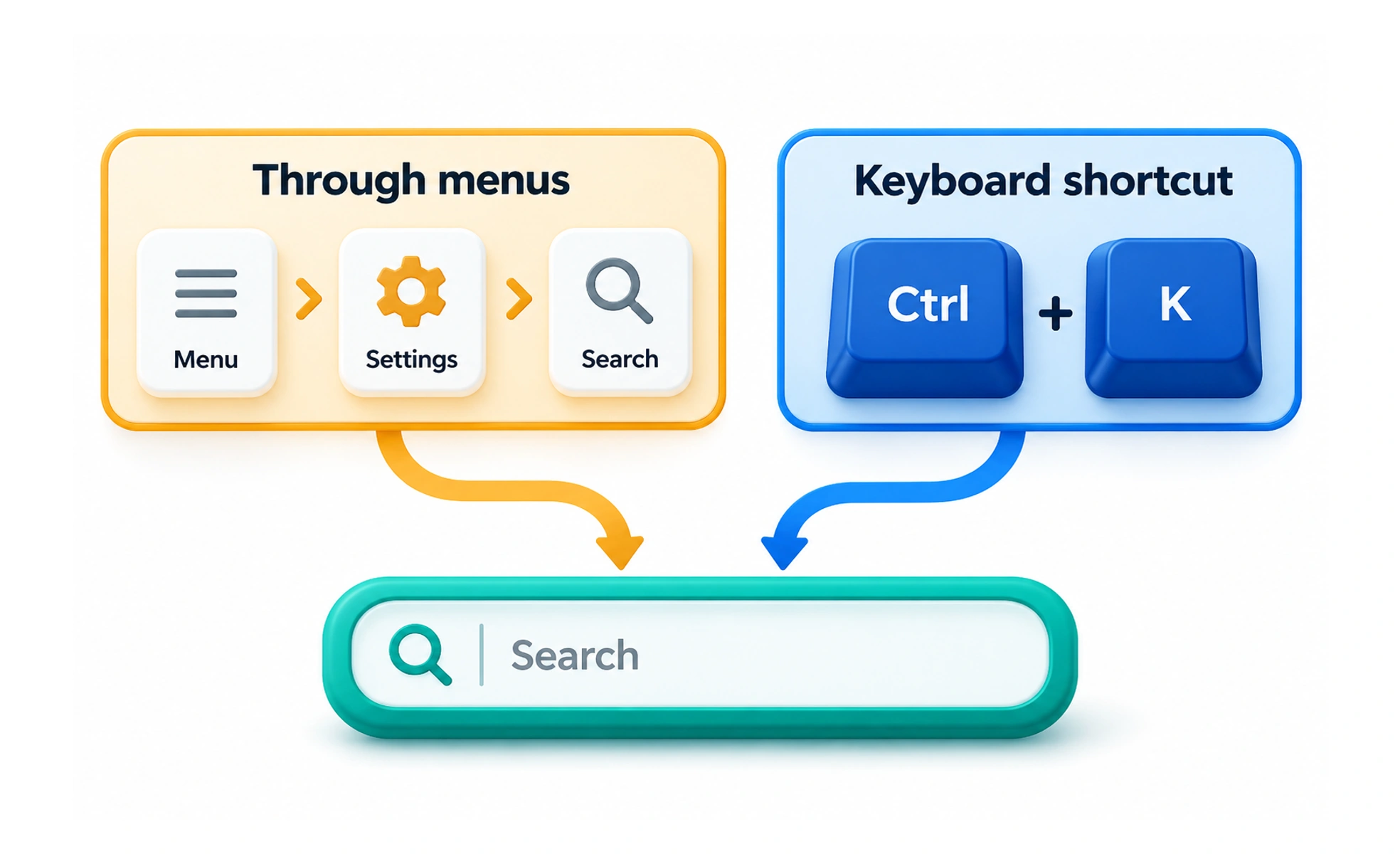
Keyboard shortcuts can help frequent users work efficiently, while navigation shortcuts can take people directly to a common area. A shortcut should complement a discoverable primary path, use familiar conventions, and avoid unexpected conflicts with assistive technology or the operating system.
A shortcut is like a side door to a familiar room: convenient for people who know it, but it should not be the only entrance.
Keep the primary path visible
Do not require users to memorize a key combination before they can complete a task. Menus, buttons, and navigation should remain available, and they can teach a shortcut when it exists. Provide an alternate action for people using touch, speech, or assistive input.
Follow familiar platform conventions
People often expect common actions such as copy, undo, and search to use established operating-system combinations. Preserve these conventions where possible, and document product-specific shortcuts clearly. Check differences between keyboard layouts and platforms before assigning keys.
Prevent conflicts and accidents
A shortcut should not interfere with browser commands, screen-reader keys, text entry, or other controls. Avoid single-character shortcuts that fire while someone is typing unless they can be disabled or changed. Make consequential actions reversible or require a deliberate confirmation when appropriate.
Help users learn and manage them
Show shortcuts in relevant menus or help content, and explain the keys for the current platform. If a product supports customization, provide a way to inspect conflicts and restore defaults. Test with keyboard-only navigation and assistive technology, not just a pointer.
Frequently asked questions
Key takeaways
- Shortcuts complement visible controls; they do not replace them.
- Use familiar platform conventions and show platform-specific keys.
- Avoid conflicts with typing, browsers, and assistive technology.
- Make shortcut discovery and recovery straightforward.