

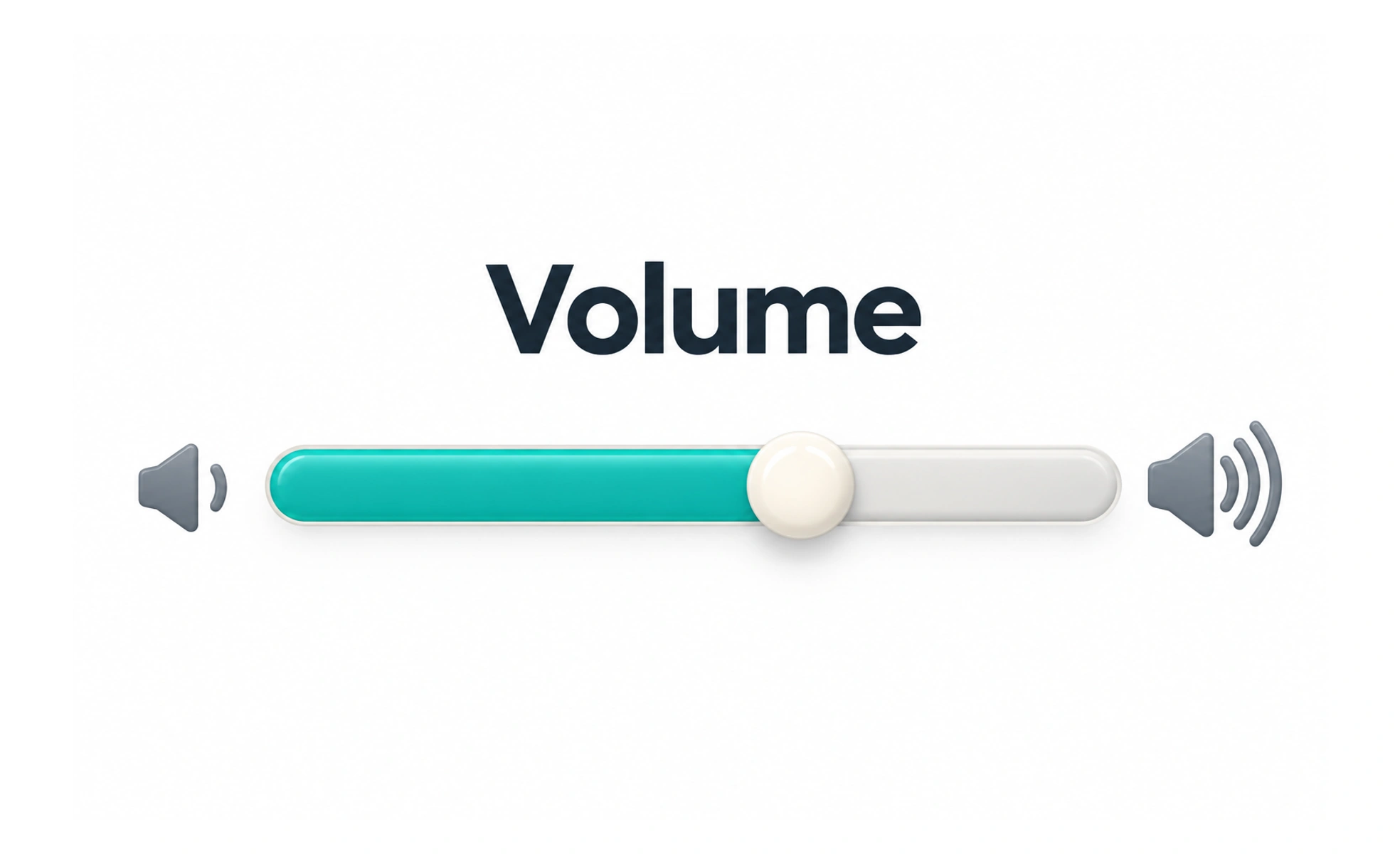
A slider lets someone choose a value within a defined range by moving a thumb along a track. It can work well for a rough or comparative choice, such as adjusting a volume level, when seeing the range matters.
A slider is like moving a marker along a ruler: it helps locate a value, but the scale must make sense.
Choose a range with meaning
Show the minimum, maximum, current value, and units when they matter. A slider from 0 to 100 is not useful if people do not know whether that means dollars, minutes, or a percentage.
Offer a precise path
Some values are difficult to select by dragging. Pair a slider with a numeric field or step buttons when precise entry matters, and keep both controls synchronized.
Support more than pointer input
Provide keyboard controls and a visible focus state. Test touch and assistive technologies on the devices learners use; dragging is not a universal interaction.
Avoid a slider for a short fixed list
If a person must choose one of five named options, a radio group or select may be clearer. A slider implies a scale and can suggest values between choices that may not actually be allowed. A volume control can use a slider because values lie along a continuous range. Include the current value, keyboard support, and an alternate precise input when accuracy matters. If only whole steps are valid, communicate those steps and make sure arrow keys do not produce invalid values.
Frequently asked questions
Key takeaways
- Label the range, value, and unit.
- Offer precise entry when exact values matter.
- Support keyboard and touch alternatives.
- Use a scale only when the values form a meaningful range.