

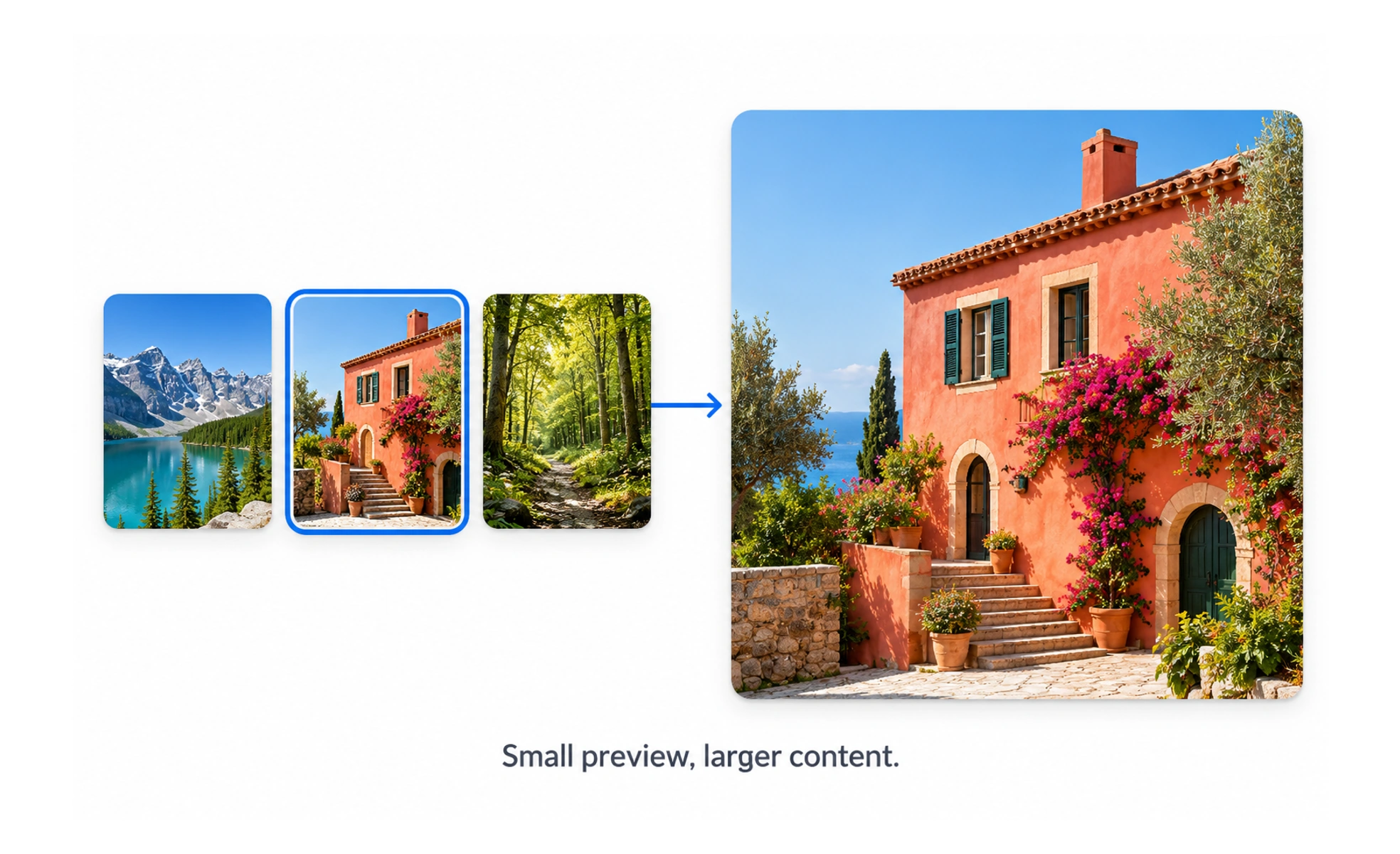
Thumbnails help people scan a collection and decide what to open. At small sizes, the most important subject or distinguishing detail must remain recognizable. The image should support the title and context rather than carry essential information that disappears when scaled or fails to load.
A thumbnail is like the cover of a book on a shelf: it helps identify the item, but the title and details still matter when covers look alike.
Choose a useful crop
Focus the crop on the subject or visual detail that distinguishes the item. A square crop may work in a compact grid, while a wider ratio may fit a video or article list. Test the actual small rendering because a composition that works at full size can lose its meaning when reduced.
Pair the image with text
Provide a clear title and any needed metadata nearby so the image is not the only way to identify content. Avoid embedding important words inside the bitmap, where they may become unreadable or inaccessible. If the image is decorative, expose it appropriately to assistive technology.
Plan loading and quality
Serve an appropriately sized asset and preserve its aspect ratio to avoid layout shifts. Use a deliberate placeholder or fallback when the image is missing, and distinguish a loading state from a broken link. Compress responsibly so a list of thumbnails does not delay the page.
Consider meaning and privacy
Choose imagery that accurately represents the item and avoid misleading previews. For personal or sensitive content, verify that the viewer is allowed to see the thumbnail before returning it from an API or cache. Crop images respectfully and provide alternatives when visual content is unavailable.
Frequently asked questions
Key takeaways
- Use a crop that remains recognizable at the displayed size.
- Pair thumbnails with text and accessible alternatives where needed.
- Load appropriately sized assets and reserve space to prevent shifts.
- Ensure previews are accurate and respect content privacy.