

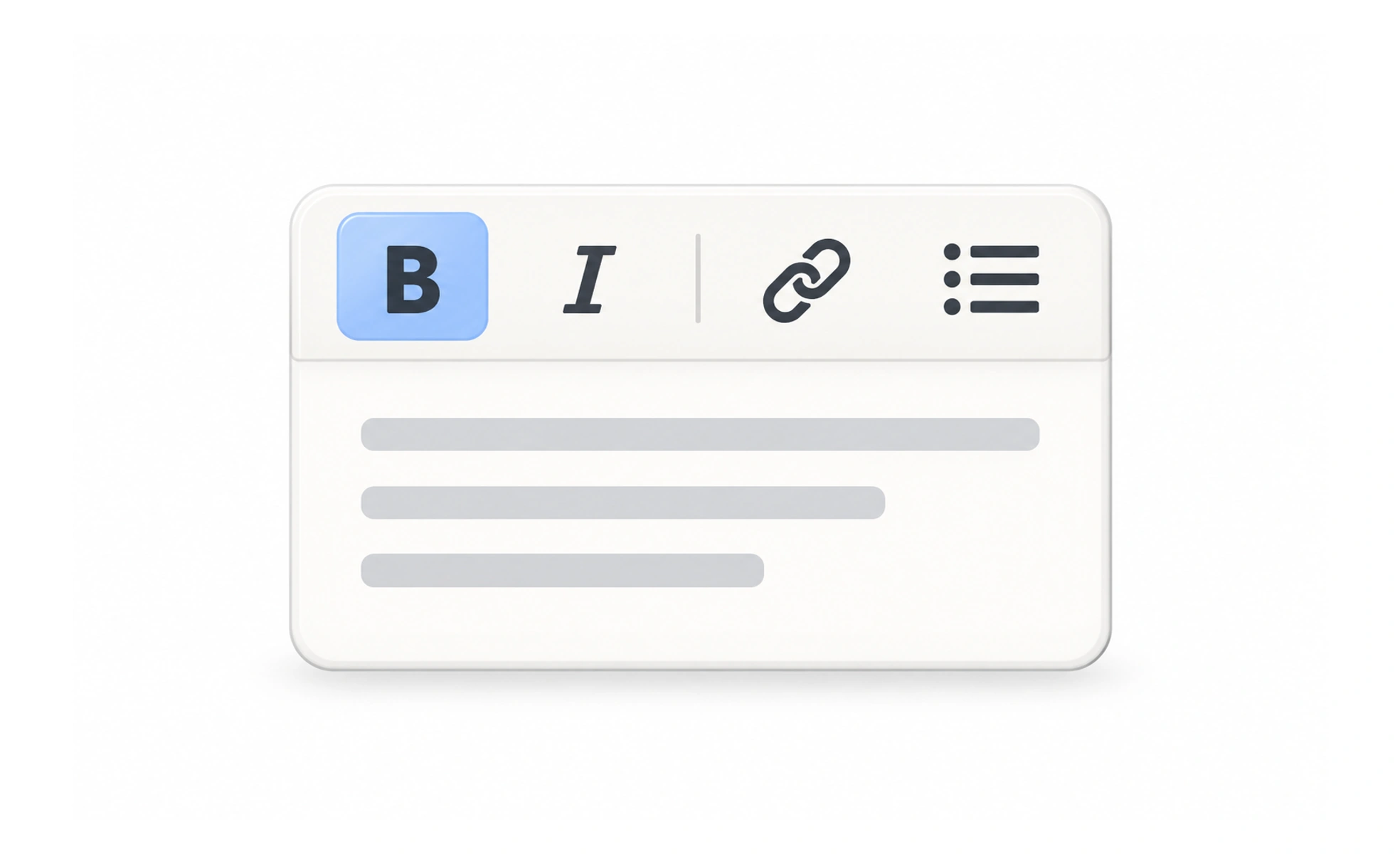
A toolbar groups frequently used commands for a shared context, such as formatting a selected text range or acting on a file. It reduces the effort of finding related actions, but becomes confusing when it mixes unrelated commands or appears without a clear context.
It is a compact workbench: the tools are together because they help with the same job.
Group commands by context
Place actions together when they operate on the same object or task. A text editor toolbar can group formatting commands, while file actions belong in a separate area. Show which commands are available for the current selection and disable or hide unavailable actions consistently.
Make actions recognizable
Use familiar icons with accessible names and tooltips where a quick clarification helps. Keep related controls in a predictable order and separate destructive actions from common formatting. Do not make icons so similar that people have to guess which command they activate.
Support compact layouts
A toolbar may collapse secondary commands into an overflow menu when space is limited. Preserve the primary commands and ensure the overflow is keyboard and touch accessible. If controls disappear based on selection, do not move focus unexpectedly when the toolbar changes.
Example: editing a brief
A rich-text toolbar shows bold, italic, lists and link actions for selected text. The current formatting state is visible, and each icon has a useful accessible name. Less frequent actions such as inserting a table sit in an overflow menu. If no text is selected, the toolbar either explains its available behavior or presents only actions that still make sense.
Frequently asked questions
Key takeaways
- Group commands around one task or object.
- Make icon actions recognizable and named.
- Keep focus stable as available commands change.
- Use overflow for secondary actions, not everything.